
What is the enrollment limit feature?
The enrollment limit is an optional setting in the Enrollem workflow action. It caps how many contacts Enrollem enrolls into sequences per hour or per day.
Contacts over the limit aren't skipped. They wait their turn and are enrolled automatically when there's room.
Why use an enrollment limit?
HubSpot caps how many sequence emails each user can send:
- Sales Hub or Service Hub Professional seat: 500 sequence emails per day
- Sales Hub or Service Hub Enterprise seat: 1,000 sequence emails per day
These limits apply per user over a rolling 24-hour period. They count every sequence email the sender sends, including follow-up steps for contacts already in a sequence, not just new enrollments.
If a sender has hit their limit, HubSpot won't enroll the contact. A workflow that enrolls a large batch at once can use up a sender's whole allowance in minutes. The enrollment limit spreads those enrollments out so your senders stay under HubSpot's limit and you don't have to watch the workflow.
How to set up an enrollment limit
- Open the workflow that contains your Enrollem action, or add a new Enrollem action.
- Click the Enrollem action to edit it.
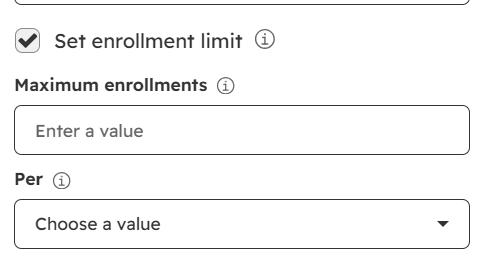
- Tick Set enrollment limit.
- Enter the maximum number of contacts to enroll, and choose per hour or per day.
- Click Save, then review and turn on (or update) your workflow.
What happens to contacts over the limit?
- Contacts over the limit are queued and enrolled automatically when capacity frees up.
- The record stays in the Enrollem workflow step until all of its contacts have been enrolled, so nobody gets skipped.
Example
You have a workflow that enrolls a segment with over 500 contacts into a sequence. Without a limit set, every contact lands at the Enrollem action at once and HubSpot will reject any sends past 500. Set the limit to 500 or less per day and the enrollments trickle in over the coming days instead.
Choosing the right limit
- HubSpot's send limit includes follow-up emails, so if your sequence has several email steps, set your limit well below 500 (Professional) or 1,000 (Enterprise) per day.
- Please note that the email limit also includes general 1:1 sales emails sent by your user.
- Use per hour to spread a large batch across the day, and per day to keep a steady daily volume over several days.
Still having problems?
Check the workflow's Action logs to see whether each enrollment succeeded, or visit our knowledge base for troubleshooting tips.